The right productivity tools can turn a scattered, reactive week into one that feels calm and deliberate, while the wrong ones simply add another icon you learn to ignore. This guide covers 15 apps worth your time in 2026, grouped by the job they do, so you finish with a stack that fits together instead of a pile of half-used logins. Every pick is a real product described honestly, with a plain note on where the free version ends and paid begins.
Table of Contents
How to choose productivity tools that actually help
Before you install anything, name the problem you’re solving. Most people don’t need more productivity tools; they need a few, used consistently. An app earns its place when it removes a friction you hit every week, not when it demos well or has the longest feature list. Start from your actual workflow and work backwards.
Three traps catch almost everyone. The first is tool sprawl, where the same note or task ends up in four different places. The second is setup so elaborate it costs more time than it ever saves. The third is paying for a premium plan whose best features you never switch on.
There’s also a hidden cost to constant switching. Every new app means re-learning shortcuts, re-importing data and rebuilding habits, which eats the very time you hoped to save. Treat adopting a tool as a small investment and give it a fair trial before moving on.
When budget is tight, start free and pay only when a limit genuinely blocks you. Most of these apps offer a free plan generous enough to test the real workflow, not just preview it. Track which paid feature you keep wishing for; if the same one comes up week after week, that is your signal to upgrade, and not before.
A quick gut check before you commit:
- Does it match how you already work, or fight it?
- Can you or your team learn it in a day, not a quarter?
- Does it connect to the apps you already depend on?
- Is the free plan good enough to test it for real?
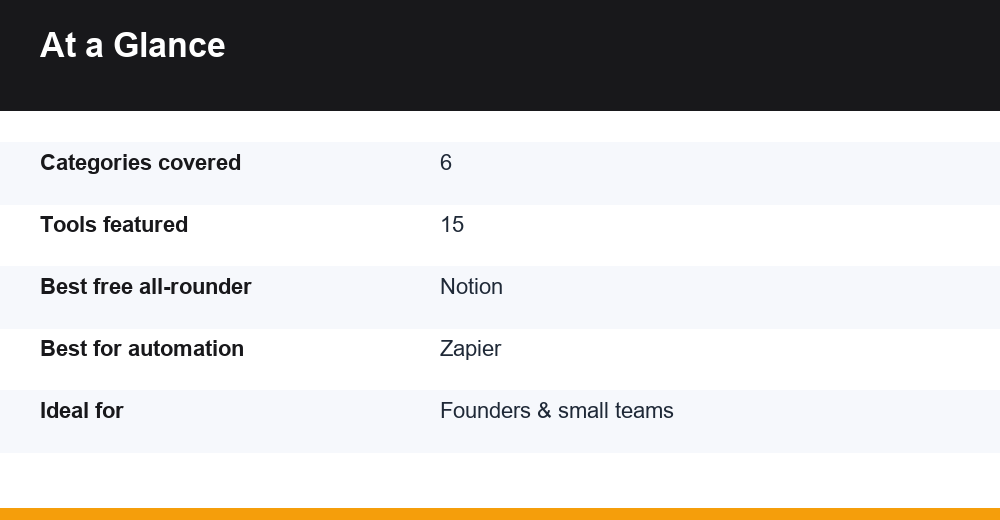
The table below sums up every pick in this guide so you can scan by category and pricing model before reading the detail.
| Tool | Category | Best for | Pricing model |
|---|---|---|---|
| Todoist | Task management | Fast personal to-do lists | Free + paid tiers |
| Trello | Task management | Visual Kanban boards | Free + paid tiers |
| Asana | Task management | Team project coordination | Free + paid tiers |
| Notion | Notes & knowledge | All-in-one workspace | Free + paid tiers |
| Obsidian | Notes & knowledge | Private linked notes | Free; paid add-ons |
| Evernote | Notes & knowledge | Capturing and searching | Free + paid tiers |
| Google Calendar | Calendar | Shared scheduling | Free (Workspace paid) |
| Reclaim AI | Calendar | Auto time-blocking | Free + paid tiers |
| Freedom | Focus | Cross-device blocking | Paid (free trial) |
| RescueTime | Focus | Time tracking | Free + paid tiers |
| Forest | Focus | Gamified focus timer | Paid app |
| Zapier | Automation | Connecting many apps | Free + paid tiers |
| Make | Automation | Complex visual workflows | Free + paid tiers |
| Slack | Communication | Organised team chat | Free + paid tiers |
| Zoom | Communication | Video meetings | Free + paid tiers |
Task management tools
These apps capture what needs doing and keep it from slipping through the cracks. If your to-dos currently live in your head, buried in your inbox, or spread across a graveyard of sticky notes, this is the category to fix first. The trick is to pick one and funnel everything into it, rather than spreading tasks thin.
Todoist
Best for individuals who want a fast, low-friction list they’ll actually keep using. Natural-language input means you can type ‘send invoice Friday 9am’ and watch it schedule itself, and it stays in sync across phone, browser and desktop. The free plan comfortably covers daily personal use; paid tiers add reminders, saved filters, labels and a longer history of completed work for people managing more projects.
Trello
Best for visual thinkers and small teams who like to see work move. Its Kanban boards make progress obvious as cards slide from ‘to do’ toward ‘done’, which suits content pipelines, hiring, and light client work. Boards are free for basic use; paid plans layer on automation rules, calendar and timeline views, tighter integrations, and the administrative controls a growing team eventually needs.
Asana
Best for coordinating work across several people without losing the thread. It handles projects, task dependencies and who owns what, yet stays approachable for non-technical teams. The free tier serves small groups well; paid plans unlock timelines, custom fields, workload balancing and reporting, which matter once a handful of projects turn into a dozen running at the same time.
Whichever you choose, tie daily tasks back to something larger. Prioritising gets much easier once you’re clear on how to set goals that are specific, measurable and tied to a deadline.
Note-taking and knowledge tools
Notes are where ideas, meeting takeaways and reference material quietly pile up. The aim is a single, searchable home so nothing important gets lost the moment you close the tab. These three tools solve that same problem in very different ways, so the right one depends on how your mind works.
Notion
Best as a flexible, all-in-one workspace. It blends notes, wikis, lightweight databases and simple project tracking, which is why so many people treat it as a second brain for both work and life. The free plan is genuinely generous for individuals; paid plans add real-time collaboration, granular permissions and more version history once a team needs to build in it together.
Obsidian
Best for private, local-first note-taking and connected thinking. Your notes are plain text files stored on your own device, so you keep full control, and internal links let ideas cross-reference each other and compound over years. It’s free for personal use, with optional paid add-ons for syncing across devices, publishing notes to the web, and commercial use inside a company.
Evernote
Best for capturing and later finding almost anything, from web clippings and PDFs to photographed receipts and handwritten notes. Its search stays fast and reliable even across a large, messy library built up over years. The free tier is limited on devices and monthly uploads; paid plans lift those caps and add offline access, stronger search and larger attachments.
Choosing between them comes down to habit. Pick Notion if you want structure and shared workspaces, Obsidian if you value ownership and links between ideas, and Evernote if fast capture and search matter most. Trying to run all three at once usually recreates the sprawl you were avoiding, so commit to one and let it hold everything.
Calendar and scheduling tools
Your calendar is the most honest picture of where time actually goes. Beyond storing meetings, the strongest options help you claim and protect blocks for focused work before colleagues fill every gap. Treating the calendar as a plan, not just a record, is what separates a busy week from a productive one.
Google Calendar
Best for shared scheduling and everyday planning. It’s free, runs on every device, and makes it effortless to see availability across a team, a household or a client. Layering multiple calendars keeps work and personal life visible without colliding. Businesses that need admin controls, more storage and email get them through a paid Workspace subscription rather than the calendar on its own.
Reclaim AI
Best for people whose weeks disappear into meetings. It automatically finds and defends time for your priorities, recurring habits and tasks, then reshuffles those blocks as new events land. There’s a usable free plan for individuals, with paid tiers adding deeper automation, more integrations and features for coordinating schedules across a whole team.
A calendar only helps if you defend it. Pairing these apps with proven time management techniques like time blocking keeps back-to-back meetings from swallowing your deep work, a practice grounded in long-standing time management research.
Focus and distraction blockers
Even a careful plan collapses if every ping drags you off task. These tools reduce temptation and reveal where your attention actually leaks, so you can string together more deep work in fewer hours. Think of them as guardrails rather than willpower replacements.
Freedom
Best for blocking distracting sites and apps across all your devices at once, so a habit you break on your laptop doesn’t just migrate to your phone. You build blocklists and schedule recurring sessions, making social media simply unreachable during focus time. It’s a paid app, with a limited free trial that’s enough to feel whether the approach fits how you work.
RescueTime
Best for honestly understanding where your hours actually go. It tracks activity automatically in the background, categorises it, and can launch focus sessions that block distractions on cue. A free plan covers basic time tracking and weekly reports; paid plans add detailed dashboards, goal setting and more forceful blocking when you need to protect a deadline.
Forest
Best for anyone who responds to a gentle, playful nudge. You plant a virtual tree that grows while you stay off your phone and withers if you wander away, which turns focus into a small, satisfying game. Pricing is a modest one-time or in-app purchase depending on your platform, so it’s a low-commitment way to build the habit.
None of these apps create focus on their own; they lower the cost of choosing it. Start with a single daily focus block, protect it like a meeting, and let the tool handle the temptations you would otherwise talk yourself into. A short, consistent habit beats an ambitious schedule you abandon within a week.
Automation tools
Automation quietly removes the repetitive glue work between apps, copying data, sending alerts and updating records so you never touch it by hand. You set it up once and it keeps paying you back every single week, which makes it some of the most rewarding time you can invest.
Zapier
Best for connecting the widest possible range of apps with no code. It links thousands of services so an action in one automatically triggers a response in another, like saving email attachments straight to cloud storage or logging form entries in a spreadsheet. A free tier covers simple, low-volume workflows; paid plans add multi-step automations, faster checks and much higher usage limits.
Make
Best for more visual and genuinely complex workflows. Its drag-and-drop canvas lets you branch, filter, loop and transform data with real precision, which appeals to people who have outgrown basic one-to-one triggers. The free tier is fairly generous for learning the ropes; paid plans scale up the number of operations and how quickly your scenarios run.
If you’re unsure which to try, start with Zapier for straightforward, everyday connections and reach for Make when a workflow needs conditional logic. Even automating two or three small tasks, like backing up files or routing new leads, frees up mental space you didn’t realise a manual habit was using.
Communication tools
Clear communication keeps a team aligned without drowning everyone in meetings. The right tools cut inbox noise, make it easy to reach the right person at the right moment, and keep a searchable record of what was decided. Used well, they replace status meetings rather than adding to them.
Slack
Best for organised team chat that replaces scattered email threads. Channels keep conversations sorted by topic, project or client, and integrations pull updates from your other tools into one searchable place. The free plan works for small teams but limits how far back you can search; paid plans restore full history and add administration and compliance controls.
Zoom
Best for reliable video meetings, webinars and screen sharing. Call quality holds up under real conditions, which is why it stays a default for client calls, interviews and distributed teams. The free plan caps the length of longer group calls; paid plans remove those limits and add cloud recording, larger audiences and host management tools.
Used carelessly, these productivity tools can create as much noise as they remove, turning every notification into another interruption. Agree on a few norms up front: which channel is for what, when a quick message beats a meeting, and when people are free to log off. The tool matters less than the habits your team builds around it.
Building a stack that lasts
The best productivity tools are the ones you’ll still open in three months, so resist the temptation to install all fifteen this week. A stack you actually maintain beats an ambitious one you abandon by February.
Start with one tool per job: a single task manager, one home for notes, and a calendar you genuinely trust. Once those feel automatic, add focus or automation productivity tools to smooth the rough edges. Review the stack every quarter and drop anything you’ve stopped opening.
Match the stack to your situation rather than to a reviewer’s favourite list. A solo consultant, a five-person startup and a chronic over-committer each need different things:
- Solo founder on a budget: Todoist, Notion and Google Calendar.
- Small team scaling up: Asana, Slack and Zapier.
- Chronic over-committer: Reclaim AI paired with Freedom.
No app makes decisions for you, but the right few remove the friction between intention and action, which is the whole point. Choose deliberately, then give your choices time to become habits.
Frequently Asked Questions
What are the best free productivity tools to start with?
For most people, a strong free trio is Todoist for tasks, Notion for notes and Google Calendar for scheduling. Each has a free plan that covers real daily use, and together they handle capturing work, storing information and planning your week without spending anything.
How many productivity apps do I actually need?
Usually fewer than you think. Aim for one tool per core job: one task manager, one note app, one calendar. Add a focus or automation app only when a specific, repeated frustration justifies it. More apps often just means more places to lose track of things.
Are paid plans worth it, or is free enough?
Free plans are usually enough to learn a tool and cover solo, light use. Upgrade when you hit a real wall, such as team collaboration, longer message history, more automation runs or advanced reporting. Pay for a limit you’ve actually reached, not one you might reach someday.
How do I stop switching tools every few months?
Commit to one tool per job for a full quarter before judging it, since most switching is procrastination in disguise. Give yourself a simple rule for what goes where, and change apps only when the friction is concrete and recurring, not merely because something newer appeared.